
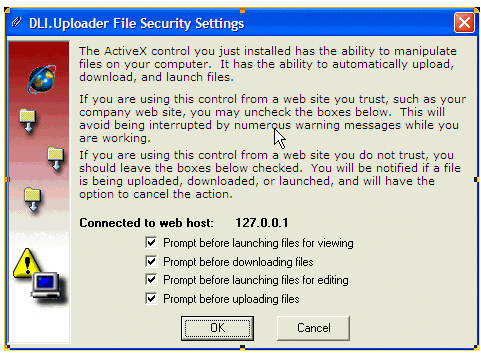
The Notices and Sticky Note functions allow you to attach any type of file to a document. We use an ActiveX control to support this function. In order to install the ActiveX control:
Attachments all operate the same way. Documents to be attached can come from any accessible source: once they are attached, they are embedded in the system. Following is an explanation of the icons available to you when working with attachments.
|
|
Add attachment: click and navigate to the location of the document to be attached. Document becomes part of the system. |
|
|
Delete attachment: select the attachment to be deleted and click. Document removed from the system. |
|
|
Undelete attachment: click to undo the last deletion. |
|
|
View attachment: select the attachment to be viewed and click. Attachment opens in the browser. |
|
|
Edit attachment: select the attachment to be viewed and click. It opens in the program used to create it (for example, Word). |
|
|
Save attachment: save attached file to a different local location, outside the system. |
|
|
Display attachments as icons. |
|
|
Display attachments as a list. |
|
|
Display attachment details. |


